
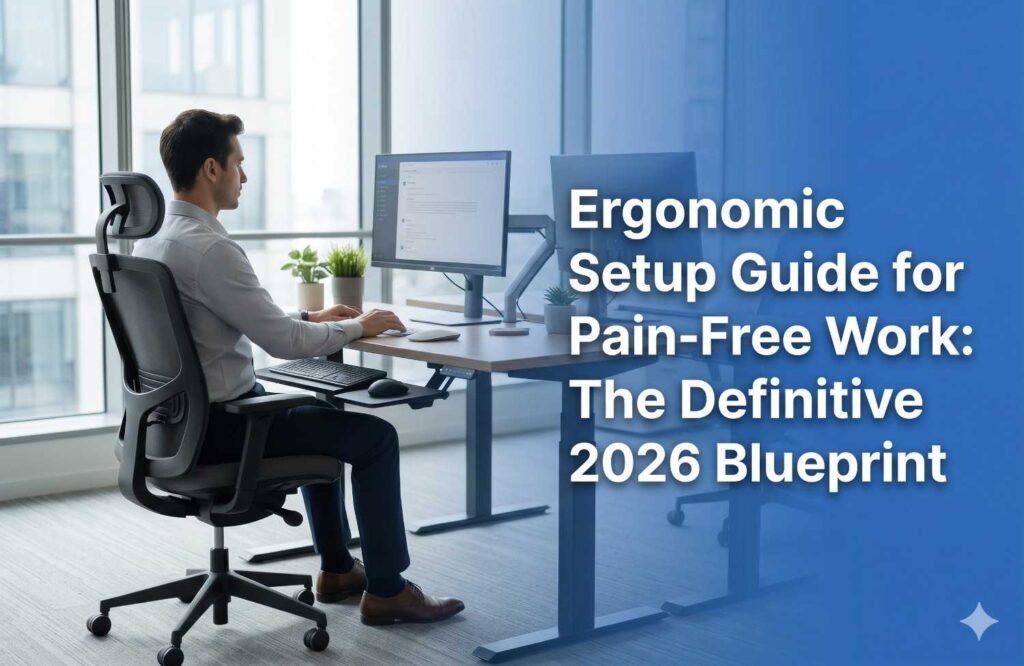
Master your workstation with this 2026 ergonomic blueprint. This guide provides research-backed strategies to eliminate chronic back, neck, and wrist pain by optimising neutral posture. Learn to calibrate your chair, monitor, and desk for long-term health, ensuring your professional setup supports your biology rather than draining your energy.
You likely spend anywhere from six to ten hours daily at your desk. In the context of a 40-year career, that is nearly 100,000 hours of seated pressure. That alone places continuous, cumulative stress on your spine, wrists, eyes, and shoulders. Over time, even small misalignments, the kind you barely notice during a busy Tuesday afternoon, compound into chronic pain.
Workplace research in 2026 consistently shows that poor workstation design is the leading cause of musculoskeletal strain. According to the ergonomics guidance from the Occupational Safety and Health Administration (OSHA), improper setups force your body into “awkward postures” that compress muscles, strain tendons, and restrict blood flow.
Here is the deeper truth most guides miss: Pain is rarely caused by one “bad” habit. It is the accumulation of small, systemic misalignments across your entire setup. This guide is designed to help you fix that entire system, moving beyond isolated adjustments to create a workspace that actually supports your biology.
The Foundation: Neutral Posture Is Your Baseline
Before making any physical adjustments to your chair, it is essential to first understand the concept of neutral posture. This is the position of maximum efficiency where:
- Your spine maintains its natural S-curve (not a C-shape).
- Your head aligns directly above your shoulders (ears over shoulders).
- Your joints rest in a “mid-range” position without strain.
When your setup supports this posture, your muscles stay relaxed. When you deviate, your muscles must “fire” constantly just to keep you upright, leading to the deep fatigue you feel by 4:00 PM.
Step 1: The Chair is Your Control Centre
Your chair determines how your body interacts with everything else. If the base is off, the rest of the “building” will lean.
- Lumbar Support: This is non-negotiable. Your lower back naturally curves inward; your chair must fill that gap to prevent “slumping.”
- The 90-90-90 Rule: Adjust your height so that your hips, knees, and ankles are at roughly 90-degree angles, with your feet flat on the floor.
Most people obsess over buying an expensive brand name. However, posture studies show that positioning matters more than price. While we were told for decades to sit “bolt upright” at 90°, ergonomic research shows that a slightly reclined posture, typically between 100° and 120°, can reduce spinal disc pressure and lower back strain compared to rigid upright sitting.”
Step 2: Desk Height and the Elbow Alignment
A common mistake is adjusting your chair to match the desk. In reality, you should adjust your chair to your body first, and then bring the desk (or your tools) to you.
- The Elbow Test: Your keyboard and mouse should roughly align with your elbows. This is why many professionals are gravitating toward modern coworking spaces; they typically offer high-quality adjustable desks that let you hit the ninety-degree alignment perfectly, something a standard dining table or a fixed home desk often fails to do.
- Shoulder Relaxation: If your desk is too high, your shoulders will “shrug” up toward your ears, which can cause tension headaches. If it’s too low, you’ll lean forward, straining your neck.
The Fix: If your desk is fixed and too high, raise your chair and use a footrest to keep your feet supported. If it’s too low, use desk risers. Ideally, keep your elbows tucked close to your body to prevent rotator cuff strain.
Step 3: Monitor Placement: The Hidden Pain Trigger
Of all ergonomic errors, monitor positioning causes the most long-term damage to the cervical spine (the neck).
- Distance: The screen should be about an arm’s length away (20 to 30 inches).
- The “Eye-Level” Rule: The top third of your screen should be at or slightly below eye level. This ensures you aren’t tilting your chin up or “turtling” your neck down.
- Central Alignment: The monitor must be directly in front of you. Even a slight 10-degree twist to look at a side monitor can cause asymmetrical muscle strain over months of work.
Even a 3–5 cm adjustment in monitor height can be the difference between chronic neck fatigue and total comfort. If you use a laptop, a laptop stand and an external keyboard are essential; otherwise, you are guaranteed to hunch.
Step 4: Keyboard and Mouse – The Micro-Strain Controllers
Your hands perform thousands of repetitive micro-actions daily. These small movements are the primary drivers of Repetitive Strain Injuries (RSI), such as Carpal Tunnel Syndrome.
- The Primary Reach Zone: Keep your keyboard and mouse within a close radius where you don’t have to “reach” or “stretch” your arms forward.
- Neutral Wrists: Your wrists should be straight, not bent upward (extension) or downward (flexion). Think of your forearm and hand as a straight line.
Subtle Fix: Place your mouse close enough that your elbow stays tucked near your ribs. This simple move shifts the weight of your arm from your wrist and shoulder to your chair’s armrest or to your torso, dramatically reducing fatigue.
Step 5: Visual Ergonomics and Lighting
Pain isn’t always physical; it is often neurological. Eye strain contributes to “mental fog,” headaches, and secondary neck pain as you lean in to see a blurry screen.
- The 20-20-20 Rule: To prevent ciliary muscle fatigue in the eyes, every 20 minutes, look at something 20 feet away for at least 20 seconds.
- Glare Reduction: Position your monitor perpendicular to windows. Glare forces your eyes to work harder to resolve images, leading to squinting and tension.
Step 6: The Missing Piece – Dynamic Movement
Even a “perfect” ergonomic setup becomes a cage if you stay in one place for too long. Your body is a hydraulic system; it requires movement to circulate blood and nutrients to your spinal discs.
- The 50/10 Rule: For every 50 minutes of sitting, stand or move for 10 minutes.
- The Standing Desk Fallacy: Standing all day is just as hard on the body as sitting all day (leading to varicose veins and lower back compression). The “Goldilocks” zone is alternation. You’ll find that premium coworking spaces are designed with this ‘dynamic flow’ in mind, offering a mix of standing stations, lounge areas, and traditional desks to encourage you to switch positions every hour, effectively breaking the cycle of static strain.”
Step 7: The “Deep” Ergonomic Factors
To truly master a pain-free workspace, you must look at the factors most guides ignore:
- Comfort ≠ Ergonomics: A plush, soft “executive” chair might feel great for ten minutes, but if it lacks structural support, it will cause more pain by lunch than a firm, ergonomic mesh chair.
- Morning vs. Evening Posture: Your spine is actually taller in the morning and compresses throughout the day. Your setup should be flexible enough to accommodate “fatigue posture” as the day goes on.
- Personalisation: Standard ergonomic guidelines are built on averages. However, individual body proportions vary, and a “one-size-fits-all” desk setup rarely works. Always prioritise adjustments based on your own body rather than relying solely on generic standards.
Summary Checklist: Your 60-Second Audit
- Chair: Lower back supported? Feet flat? Knees slightly below hips?
- Elbows: Tucked at 90 degrees? Shoulders relaxed?
- Monitor: Top of screen at eye level? Arm’s length away? Centered?
- Hands: Wrists straight? Mouse in the “reach zone”?
- Lighting: No glare on screen? Is the ambient light sufficient?
- Movement: Have you stood up in the last hour?
Final Thoughts
Ergonomics is not a one-time “set it and forget it” task. It is a system of alignment, movement, and consistency. A well-designed workstation doesn’t just prevent injury; it liberates your focus. When your body isn’t screaming for attention due to a pinched nerve or a cramped shoulder, your brain is free to do its best work. Pain-free work is creating an environment where your body can function naturally, efficiently, and sustainably.
Ready to start? Adjust your monitor height right now. It is the single highest-impact change you can make today. Grab a few sturdy books if you don’t have a stand; your neck will thank you by 5:00 PM.