
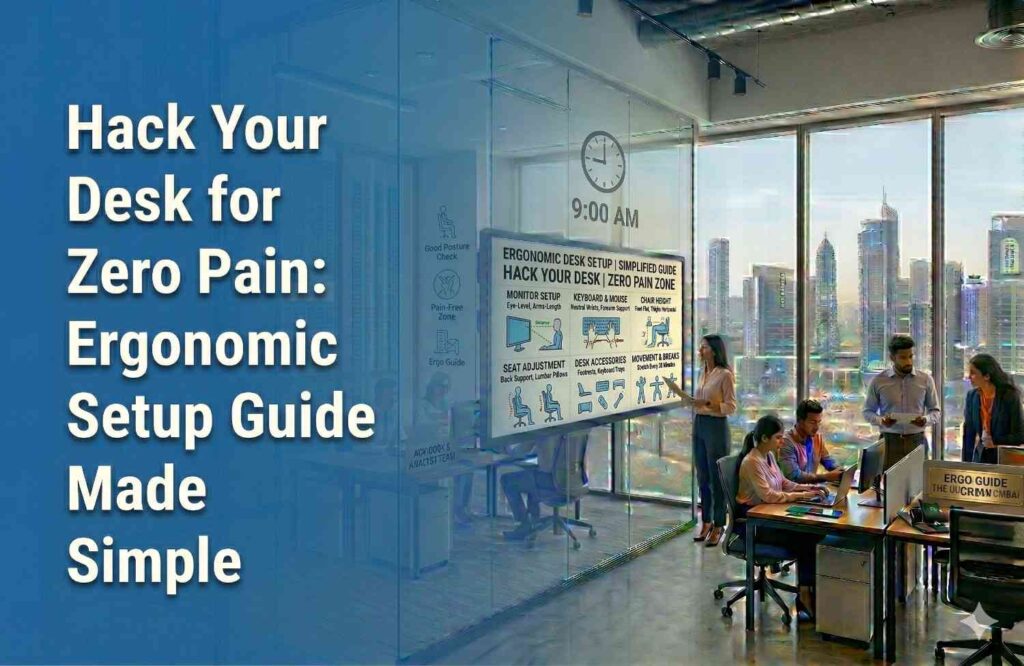
Transform your workspace into a hub of comfort with this comprehensive ergonomic guide. Learn how to align your monitor, adjust your chair, and position your keyboard to eliminate chronic neck and back pain. By applying these simple principles, you can boost productivity, improve posture, and ensure long-term physical health.
Think about how many hours you spend at your desk every day. Five? Eight? Sometimes even twelve?
Now think about the position of your monitor, the height of your chair, and the way your wrists rest on the keyboard, which are silently shaping how your body feels by the end of the day.
If your neck feels stiff, your shoulders feel heavy, or your lower back complains every evening, the problem may not be your workload. It may be your workspace.
Modern work is screen-based. Many people spend the majority of their day seated at a computer. Research shows that over 58% of office workers report musculoskeletal pain, especially in the neck, shoulders, and wrists, due to poor workstation ergonomics.
The good news is that a few thoughtful adjustments can dramatically reduce strain and make long work hours far more comfortable.
This guide will walk you through building an ergonomic workstation that supports your body, protects your health, and keeps you productive.
What Is an Ergonomic Workstation & Why Is It Important?
An ergonomic workstation is a workspace designed to support your natural posture and movement. Instead of forcing your body to adapt to your desk, ergonomics adapts the workspace to you.
The goal is simple:
- Reduce physical strain
- Prevent long-term injuries
- Improve comfort and productivity.
Poor workstation design can cause repeated stress on muscles and joints. Over time, this may lead to issues like lower back pain, neck strain, and repetitive stress injuries. When your workstation supports proper posture, your body stays in a neutral position. This helps in reducing unnecessary stress on muscles and joints.
But the benefits go beyond physical health. A well-designed ergonomic workspace can also:
- Improve focus and mental clarity.
- Reduce fatigue throughout the day.
- Increase productivity and work quality.
- Prevent long-term posture problems.
Many coworking spaces are built with these principles in mind. They offer you pre-adjusted chairs, standing desks, and neutral setups that adapt to your body right away.
Understanding the Key Principles of Ergonomics
Before adjusting your desk setup, it’s helpful to understand the fundamental principles of ergonomic design.
1. Maintain Neutral Posture
Your body works best when joints are in a natural, relaxed alignment. That means:
- Head aligned with your spine.
- Shoulders relaxed
- Wrists straight
- Elbows close to your body
This neutral positioning reduces strain on muscles and ligaments.
2. Keep Everything Within Reach
Items you use frequently, like keyboard, mouse, phone, and documents, should be close enough that you don’t have to stretch or lean forward. Constant reaching can cause tension in the shoulders and upper back.
3. Avoid Static Posture
Even if your posture is perfect, staying still for hours is harmful. Experts recommend short movement breaks every 20–30 minutes and standing or stretching at least once every hour.
Movement is one of the most overlooked aspects of ergonomics.
4. Adjust the Workspace to Your Body
Your desk setup should fit your height, arm length, and vision. Small adjustments in chair height, monitor level, or keyboard position can dramatically change how your body feels after a full workday.
How to Set Up Your Ergonomic Workstation
Now let’s walk through the step-by-step process of building an ergonomic workstation.
1. Start with Your Chair (The Foundation)
Your chair determines how your entire body aligns while sitting. A proper ergonomic chair setup includes:
Seat Height
- Feet flat on the floor
- Knees at about 90 degrees
- Thighs roughly parallel to the floor
If your feet don’t reach the floor comfortably, use a footrest.
Back Support
- Sit with your back fully against the backrest.
- Ensure the chair supports the natural curve of your lower back.
Without lumbar support, the lower spine tends to collapse forward, which can lead to back pain.
Seat Depth
There should be 1–2 inches of space between the back of your knees and the seat edge.
Recline Angle
Many ergonomics experts recommend a slight recline (around 100–110°) instead of sitting perfectly upright. This reduces spinal pressure.
2. Adjust Desk Height
Your desk should allow your arms to rest comfortably while typing. The ideal position:
- Elbows bent around 90 degrees.
- Forearms parallel to the floor.
- Shoulders relaxed
If your desk is too high, your shoulders lift, which can cause tension. And, if it’s too low, you’ll have to lean forward and strain your back.
Under the desk, make sure there’s enough clearance for your knees and legs to move comfortably. This is one reason flexible offices shine: they often provide height-adjustable desks that let you effortlessly dial in the perfect elbow and forearm position, keeping your shoulders relaxed all day.
3. Position Your Keyboard and Mouse
Your keyboard and mouse should be close enough that your elbows stay close to your body. You can simply follow these guidelines:
- Keyboard at elbow height
- Wrists straight and neutral.
- Mouse on the same level as the keyboard
Avoid resting your wrists on hard surfaces while typing, as it increases pressure on tendons.
A small tip many people overlook:
Adjust mouse sensitivity. Higher sensitivity means less arm movement, reducing strain during long work sessions.
4. Optimise Monitor Placement
Monitor position is one of your biggest causes of neck pain. For an ergonomic setup:
Distance
- About an arm’s length away (50–100 cm)
Height
- Top of the screen at or slightly below eye level
Alignment
- The monitor should be directly in front of you, not off to the side.
If your screen is too low, you’ll lean forward, and if it’s too high, you’ll tilt your neck backwards. For laptop users, a simple fix is to use:
- a laptop stand
- an external keyboard and mouse
5. Lighting and Screen Position
Eye strain is another hidden productivity killer.
Position your monitor so that bright light sources (windows or lamps) are to the side, not directly behind or in front of the screen.
Other helpful adjustments include:
- Increasing font size
- Using blue-light filters
- Matching screen brightness to room lighting
6. Organise Your Workspace
Even clutter affects ergonomics. Keep your frequently used items, like your phone, notebook, and water bottle, within easy reach to avoid repetitive twisting or stretching. If you regularly read physical documents, consider a document holder aligned with your monitor to avoid constant neck bending.
The Correct Sitting Posture for Long Work Hours
Let’s simplify what good posture actually looks like.
When seated correctly:
- Head aligned with spine.
- Shoulders relaxed
- Back supported by the chair
- Elbows close to the body
- Wrists straight
- Knees around 90°
- Feet flat on the floor
Your ears, shoulders, and hips should align vertically. It is a simple way to check if your posture is balanced. One more thing: posture isn’t about sitting perfectly straight all day; the real secret is movement and variation.
Quick Ergonomic Checklist for a Pain-Free Workspace
Before you start working, run through this quick checklist:
- Monitor at eye level.
- Screen about an arm’s length away
- Feet flat on the floor or footrest
- Knees and elbows around 90°
- Back supported by a chair
- Wrists straight while typing
- Frequently used items within
- Lighting positioned to avoid screen glare
- Microbreak every 30–60 minutes
If most of these are in place, then congratulations, you’re already ahead of most desk workers.
Common Ergonomic Mistakes to Avoid
Even with the best intentions, many people unknowingly sabotage their setup. Here are a few common mistakes.
- Laptop screens are too low and keyboards too cramped. Without accessories, they almost guarantee poor posture.
- Leaning forward strains the neck and upper back.
- A perfect ergonomic setup cannot replace regular movement breaks.
- If your mouse is too far away, your shoulder stays strained for hours.
- If your feet dangle or knees sit above your hips, your lower back absorbs the strain.
Final Thoughts
Your workstation affects your body more than you realise. Over weeks, months, and years, the way you sit and interact with your desk shapes your posture, energy levels, and overall health.
The good news is that ergonomic improvements rarely require expensive equipment. Often, small adjustments like raising your monitor, repositioning your keyboard, or adjusting your chair can transform your comfort at work.
Think of your workstation as an extension of your body. When it supports natural movement and alignment, work becomes easier, focus improves, and pain slowly disappears.
So the next time you sit down at your desk, take a moment to look around. A few thoughtful adjustments today could save your body from years of unnecessary strain.